
Visual Diagram for Wiring Harnesses
Every harness now has a Diagram view - a canvas where you drag connectors and branches into position and see how they connect through a set of routed lengths.
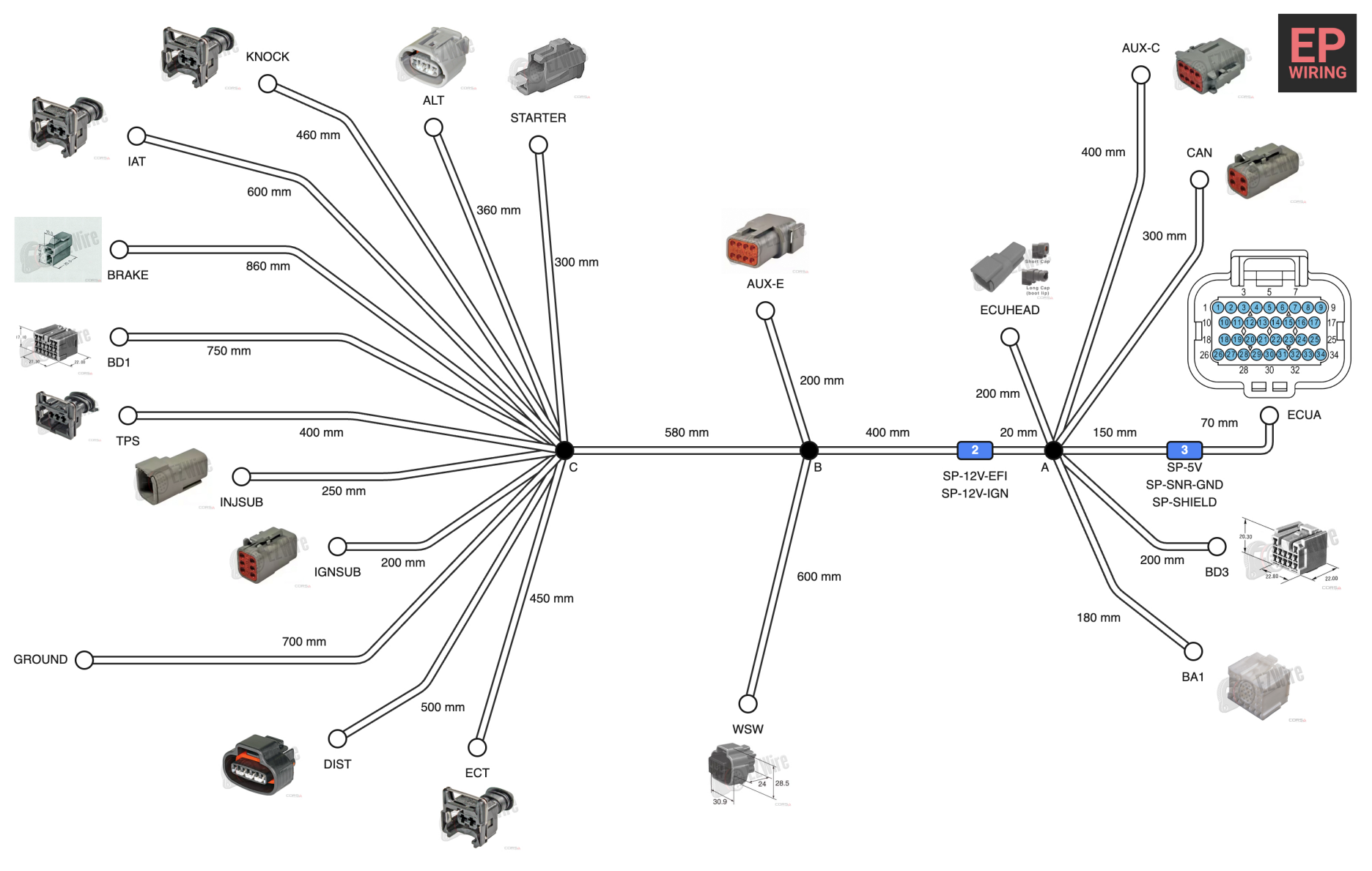
The diagram pulls in everything you've already built - connectors, branches, and the lengths between them - and displays it as an interactive layout. Drag elements anywhere on the canvas, and the routing updates to follow. Positions are saved automatically, so the layout persists the next time you open the harness.
Each connector shows its label and the lengths attached to it. Branches sit in the middle of splits, with all the relevant connections fanning out from there. You can move individual elements to mirror how the harness actually sits in the vehicle, or arrange them however makes the layout easiest to read.
Routing control
Lengths route automatically between their endpoints, but you can drag the path of any length to add intermediate waypoints and bend it around other elements. This matters when connectors are close together or when the default routing cuts across something it shouldn't.
Length labels show the measurement for that run - useful for a quick sanity check while laying out the diagram. Connector images display on the canvas too, so you can see the physical connector face alongside the connection data.
Why it's useful
A harness built entirely in a table view is hard to reason about spatially. The diagram gives you a second perspective - you can see which connectors are close together, where a branch sits relative to both endpoints, and whether a length run is realistic given where the connectors are mounted.
It's also a practical communication tool. Print or screenshot the diagram and share it with a fabricator or technician. The layout is clear enough to work from without needing to open the software.
Getting started
Open any harness and click the Diagram tab in the navigation. Connectors and branches drop into a default layout to start. Move them around to match how you want the harness documented.
Try the diagram view
The visual diagram is available on all plans. Open any harness and click the Diagram tab to get started.